How to Run a Timed Class on a Gym TV (Three Setups, From Free to Fully Synced)
Put a workout timer on your gym TV in 5 minutes: Three setups from one screen to synced multi-screen classes, the right timer mode per class format, and troubleshooting.
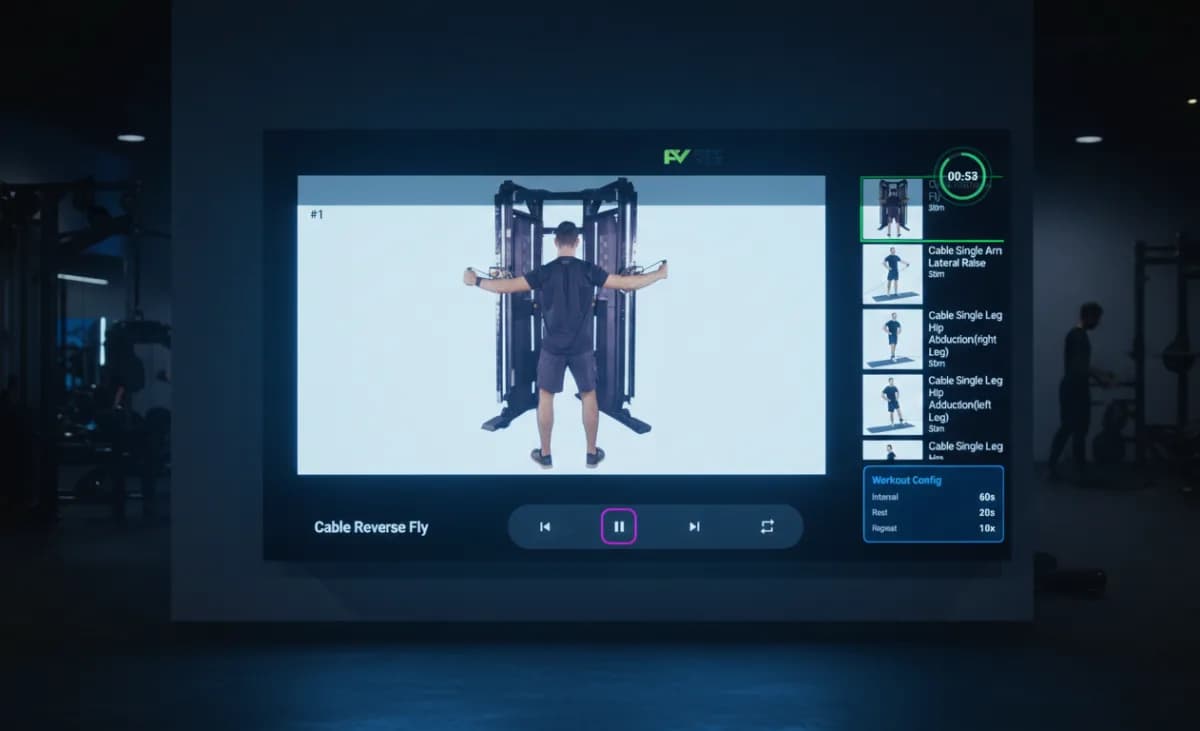
The single most common failure in group fitness has nothing to do with programming:
The timed class where nobody can see the time. The coach runs a phone timer, the back row can't hear the beep over the music, half the room finishes the interval late, and the workout on the whiteboard doesn't match the clock in the coach's hand.
The fix is putting the class timer where every member is already looking - on the screen. Here are the three ways to run a gym class timer on the wall, from a five-minute free setup to a fully synced multi-screen system, plus which timer mode fits which class format.
Setup 1 - One screen, the free way (5 minutes)
- Any TV with a web browser becomes a gym TV timer the moment you open a timer URL on it. No app, no hardware, no account.
- On the TV's browser (or a streaming stick / any laptop plugged in by HDMI), open the free workout timer.
- Pick the mode for today's class and configure it - or open a preset link directly: a 40/20 HIIT block, an EMOM 20, a Tabata block, or boxing rounds.
- Go full-screen. The timer keeps the screen awake and keeps counting through a Wi-Fi hiccup once it's loaded.
- Route the sound: TV speakers are rarely enough for a class - send TV audio to the gym speakers, or run the timer on a laptop connected to the sound system.
- Bookmark the presets you use every week on the TV browser so setup becomes one tap.
Good for: Single-class-at-a-time studios, garage gyms, one coach, one format.
Limit: The coach still walks to the screen (or a wireless keyboard) to start, pause, and change blocks.
Setup 2 - Cast from the floor (control in your hand)
Same timer, but the coach controls it from a phone or tablet while it displays on the wall for the whole gym class:
- Cast: open the timer on your phone and cast the tab to a Chromecast/Google TV, or AirPlay it to an Apple TV; the wall shows the countdown, the phone stays the remote.
- Shareable presets: every timer configuration is a URL - program the class on your phone, open the same link on the TV, and both show the identical block.
- Two screens, two links: front and back of the room? Open the same preset URL on both TVs; they run the same clock.
Good for: Coaches who move around the room, multi-format classes that change blocks mid-session.
Limit: Casting adds a half-second of lag on some setups (test before the 6 AM class), and the workout itself still lives somewhere else - whiteboard, PDF, coach's memory.
Setup 3 - Synced screens with the workout, the clock, and the room (the system)
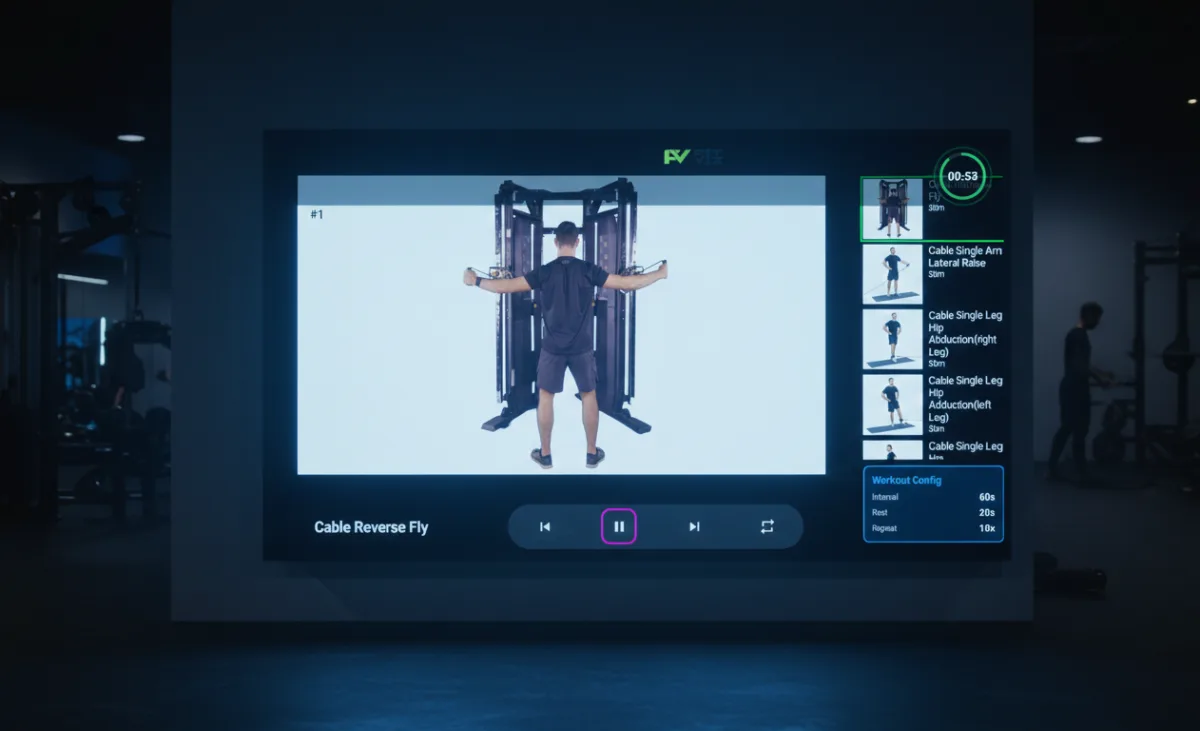
The ceiling on setups 1 and 2 is the same: the timer is on the screen, but the workout isn't. Once a facility runs multiple classes a day, Rx/scaled tracks, station rotations, or wants heart rate on the wall, the browser tab stops scaling, and a workout display takes over:
- Workout + timer on every screen, synced - the block structure, the movements, the demos, and the countdown, all in one view, updated once from the coach's device.
- Class-aware - the 6 AM Rx and the 7 AM scaled versions switch automatically by schedule; no reloading presets between classes.
- Live effort - Heart rate zones on the same screen as the clock, so the coach sees who's pushing and who's coasting during the interval, not after.
- Member names on the wall - check-ins from class booking appear on the display, the roster becomes the leaderboard.
- Music that follows the round - FitBeats shifts intensity with the work and rest intervals the display is running.
Good for: Any facility running 2+ gym classes a day, class-based formats (CrossFit, HIIT, boxing, bootcamp, boutique).
Cost: The screens are TVs you own; the software starts free.
Which timer mode for which class?
Match the timer mode to the gym class format - the wrong mode makes a timed class feel disorganized even when the programming is right:
| Class format | Timer mode | Why | Preset |
|---|---|---|---|
| CrossFit / functional WOD | EMOM, AMRAP, For Time | Minute-based and cap-based blocks | EMOM timer |
| HIIT / bootcamp | Work/rest intervals (40/20, 45/15) | Station-friendly, coaches cleanly | HIIT timer |
| Tabata classes | 20/10 × 8 blocks with breaks | Fixed protocol, stackable | Tabata timer |
| Boxing / kickboxing / MMA | Round timer 3:00/1:00 with sticks | Fight-standard rounds, 10-second warning | Boxing timer |
| Circuits / stations | EMOM or fixed-station intervals | Every station moves on the same cue | EMOM timer |
| Yoga / mobility | Long intervals, no countdown audio | Gentle transitions, visual-only | Custom interval |
Making a gym TV timer readable from the back of the room
- Digits, not decoration: the countdown should fill most of the screen; small clocks in the corner of a slide are the #1 readability failure.
- Distance: a 55" screen reads comfortably to ~40 feet; larger rooms need a second screen (setup 2) or synced screens (setup 3), not a bigger font.
- Contrast and color: light digits on dark, and a color shift for the last 10 seconds - the room reacts to color faster than numbers.
- Sound over music: the interval cue must cut through the playlist; route timer audio through the gym speakers and test at class volume, not office volume.
- Placement: mount where every station has a sightline - usually not the wall by the door.
Our gym TV guide covers which screen to buy, wall-mount specs, and the entertainment-vs-display distinction; this page is about the clock.
The coach workflow that makes it stick
- Pre-build the week. Five presets, five bookmarks (or five QR codes taped to the coach's desk) - one per gym class format.
- One person changes the block. The coach's phone is the remote (setup 2) or the display's control view (setup 3); nobody touches the TV mid-class.
- Announce the cue. Tell the room what the sound means in the first minute - bell = go, sticks = ten seconds, tone = rest.
- Photograph the block, not the board. With the workout on the screen, the "what was today's WOD" question answers itself in the member app.
Troubleshooting
- The TV browser sleeps mid-class. Use the timer's full-screen mode (it holds the screen awake); on older TVs, a streaming stick or a laptop over HDMI is more reliable than the built-in browser.
- Wi-Fi drops. A loaded timer keeps counting; start it before class, not during.
- Casting lag. Use the preset-URL-on-both-devices method instead of mirroring.
- Can't hear the cue. Route audio to the gym speakers; the cue is mixed to sit over music, but TV speakers can't compete with a class playlist.
- Two classes overlap. That's the signal for setup 3 - class-aware switching exists so nobody reloads a preset at 6:59.
When the free timer is enough - and when it isn't
A browser timer on a TV is a legitimate, permanent solution for a lot of gyms: one format, one coach, one class at a time. The moment the program grows - multiple classes a day, scaling tracks, station rotations, heart rate, rosters - the clock needs to live inside the workout, on every screen, updated once. That's the line between a gym TV timer and a class-delivery system, and the Fit Viz workout display is built for the far side of it (with the same free timer engine inside). If you're on the near side, the free workout timer on your gym TV - or gymtv, as many operators write it - is all you need today.